Workflow and Debugging
At this point, our stack is doing quite a bit:
- the API is containerized
- MongoDB is containerized
- Docker Compose is orchestrating both services
- the database data lives in a named volume
Very nice.
Now comes the real developer life part: figuring out what is happening when something does not work the way we expected.
The Everyday Toolkit
Section titled “The Everyday Toolkit”We do not need fifty commands.
A small handful will solve most of our day-to-day container mysteries.
Check What Is Running
Section titled “Check What Is Running”Start with:
docker compose psThis shows the services in our Compose project, whether they are running, and which ports are published.
If something is missing, exited, or restarting over and over, this is a good first clue.
Before we try random fixes, make sure we know what is actually running.
A surprising amount of debugging starts with realizing a container is not up at all.
Read the Logs
Section titled “Read the Logs”If a service is starting badly, crashing, or failing to connect to something else, logs are usually the next stop.
To view logs from the whole stack:
docker compose logsTo keep watching new log output as it happens:
docker compose logs -fIf we want logs for just one service, add its name:
docker compose logs -f api_serviceor:
docker compose logs -f db_serviceThis is often the fastest way to spot:
- connection errors
- missing environment variables
- startup crashes
- port conflicts
- bad code changes
Step Inside a Running Container
Section titled “Step Inside a Running Container”Sometimes logs are not enough.
Sometimes we want to poke around inside the container directly.
That is where docker compose exec comes in.
For example, to open a shell inside the API container:
docker compose exec api_service shOr to open mongosh inside the database container:
docker compose exec db_service mongoshThis is great for inspecting the environment, checking files, or testing commands from inside the container itself.
Rebuild When the Image Is Out of Date
Section titled “Rebuild When the Image Is Out of Date”One of the easiest mistakes to make is forgetting that changing source files does not always mean our running container has those changes.
If we changed app code or the Dockerfile, rebuild:
docker compose up --buildThat tells Compose to rebuild images as needed before starting the services.
If our code changes are not showing up, there is a good chance we are still running an older image.
Containers do not magically absorb source code changes unless our setup is explicitly designed for that.
Common Trouble Spots
Section titled “Common Trouble Spots”A few problems come up again and again.
Port Already in Use
Section titled “Port Already in Use”If Compose says a port is unavailable, something else may already be using it on our machine.
For example, port 3000 may already belong to another app.
We can stop the conflicting process, or change the published port in compose.yaml.
Connection Failures Between Services
Section titled “Connection Failures Between Services”If the API cannot reach MongoDB, check the usual suspects:
- is
db_serviceactually running? - is
MONGO_URIpointing todb_servicerather thanlocalhost? - did the API start before MongoDB was ready?
- are we looking at the current logs?
Missing Data
Section titled “Missing Data”If our seeded data seems to vanish, ask:
- did we remove the volume with
docker compose down -v? - are we using the correct database name?
- did the import actually succeed?
- are we querying the right collection?
Changes Not Taking Effect
Section titled “Changes Not Taking Effect”If we updated server.js, compose.yaml, or .env, make sure we restarted or rebuilt in a way that matches the change.
Not every change needs the exact same fix.
A Good Debugging Mindset
Section titled “A Good Debugging Mindset”When something breaks, resist the urge to mash commands together and hope for a miracle.
A better sequence is:
- check container status
- read the logs
- verify configuration
- step inside the container if needed
- rebuild only when the issue actually points there
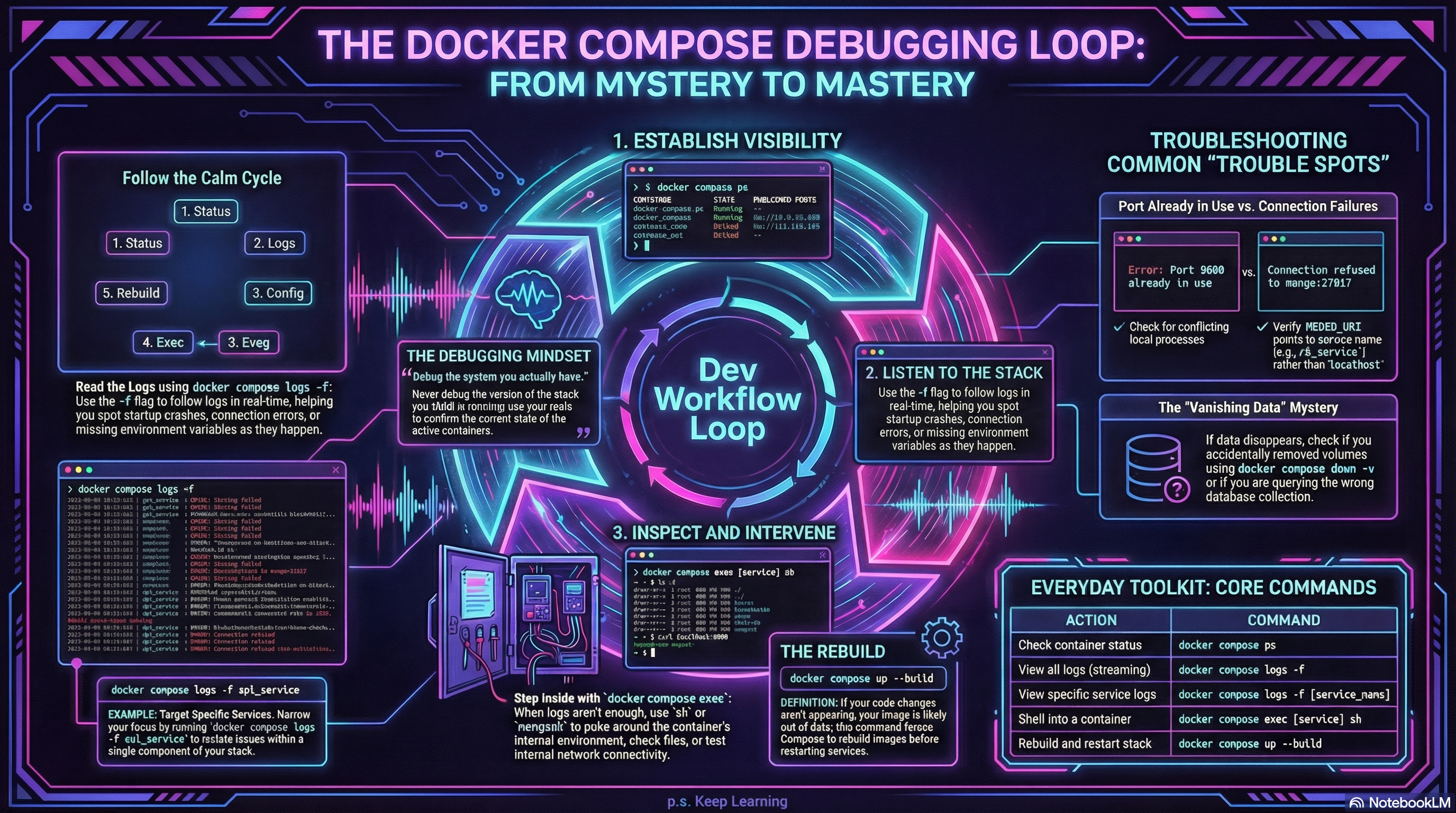
Figure 1: The Dev Workflow Loop. When the stack isn’t behaving, follow this logical cycle to reveal the underlying issue. Most ‘mysteries’ are solved between steps 1 and 3.
That is calmer, faster, and usually much less cursed.
Do not debug the version of the stack you think is running.
Debug the one that is actually running right now.
The Real Lesson Here
Section titled “The Real Lesson Here”Containers do not remove debugging.
They just change the shape of it.
Instead of asking only, “Is my app broken?”, you also start asking:
- is the container running?
- is the image current?
- is the config correct?
- are the services talking?
- is the data where I think it is?
That is the containerized workflow.
And honestly? Once we get used to it, it is pretty manageable.
Extra Bits & Bytes
Section titled “Extra Bits & Bytes”Docker Compose Logs Reference
⏭ Two-Container Lab
Section titled “⏭ Two-Container Lab”We’ve covered the moving parts. Next, it’s your turn to put the whole setup together in a hands-on lab with an API service and a database service working side by side.