Running the Container
Start the App from the Image
Section titled “Start the App from the Image”We have a built image named node-aboard. To create and run a live container from that image, we run:
docker run -p 3000:3000 node-aboardBreakdown of the command
Section titled “Breakdown of the command”docker run: creates and starts a new container based on an image.-p 3000:3000: maps host port3000to container port3000.node-aboard: the name (tag) of the image we want to run.
Test It Out
Section titled “Test It Out”If the Node app is listening on the expected port and starts cleanly, it should now be fully reachable.
Navigate to http://localhost:3000 in a browser and break a bottle of champagne over the server rack bow (No, don’t actually do that. It’s just a metaphor).
That is the big moment: our application is now running cleanly inside an isolated container, totally divorced from whatever weird global tools might be installed on the host machine.
Port Mapping Details
Section titled “Port Mapping Details”Port mapping is one of the most common early confusion points with Docker.
The format is always:
hostPort:containerPortSo, if we ran:
docker run -p 8080:3000 node-aboardThat means:
- The host machine (the laptop) listens on port
8080. - Traffic hitting
8080is forwarded to port3000inside the container, which is where our Node app is listening.
We would visit the app at http://localhost:8080.
If another application on your laptop is already using port 3000, docker run -p 3000:3000 will fail. You’ll need to map it to an open host port, like -p 3001:3000. Note that the container port usually stays whatever the app was
programmed to listen on.
Stop that Container!
Section titled “Stop that Container!”There are a few ways to stop a running container.
- Press
Ctrl + Cin the terminal where the container is running in the foreground. - From a new terminal with the Docker CLI stop command:
- run
docker psto list all running containers, - then
docker stop <container_id>
- run
- Find and stop the container in Docker Desktop.
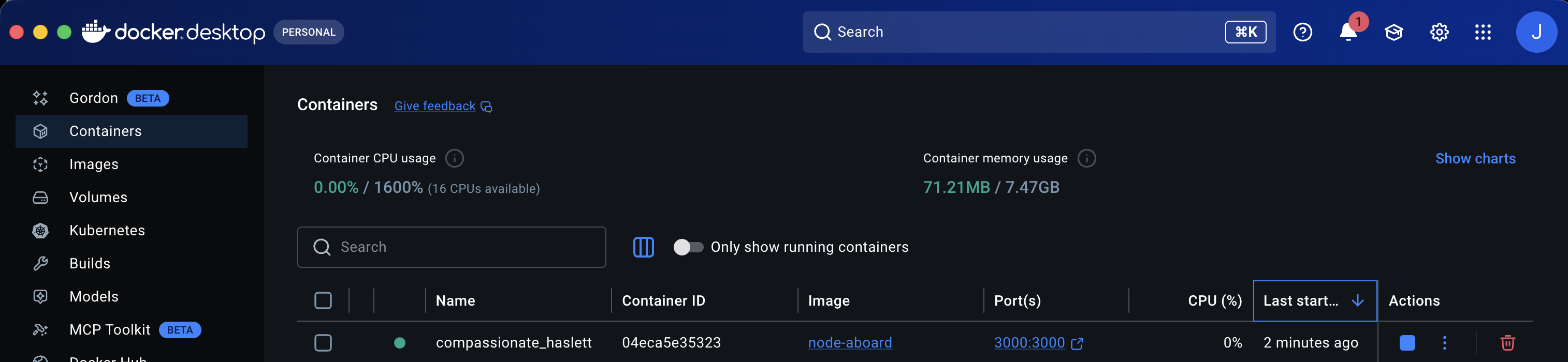
Figure 1: The Docker Desktop Container Running
Running and Stopping Detached
Section titled “Running and Stopping Detached”Often we want to run a container in the background, without tying up our terminal.
We can do this by adding the -d flag to the docker run command.
docker run -d -p 3000:3000 node-aboardIn this case we can’t use Ctrl + C to stop the container.
Instead, we use the docker stop command:
docker stop <container_id>Extra Bits & Bytes
Section titled “Extra Bits & Bytes”Docker Networking Overview
⏭ Common Gotchas
Section titled “⏭ Common Gotchas”What could possibly go wrong?