The Control Surface
Now that we have fixed our configuration using .env files, we need to move beyond the simple “run it and watch” workflow.
As developers, we rarely want to keep our terminal locked to one process forever. We need a way to manage the stack’s lifecycle efficiently.
Detached Mode: Reclaiming Our Terminal
Section titled “Detached Mode: Reclaiming Our Terminal”For normal development, we usually want the stack running quietly in the background.
docker compose up -dThe -d flag stands for detached mode. It starts everything, tells us what it did, and immediately hands back control of the shell.
In the real world, -d is the default way most developers use Compose.
We start the stack, then go back to coding, rather than staring at logs.
Inspecting the Fleet
Section titled “Inspecting the Fleet”Once we are running in detached mode, we lose that immediate visual feedback. We need tools to check the status of our “fleet.”
Checking Status
Section titled “Checking Status”docker compose psThis command shows every container managed by the current Compose project, its status (Running, Exited, etc.), and which ports are mapped.
Tapping into the Logs
Section titled “Tapping into the Logs”If something goes wrong (like a database connection failure), we need to see the output:
docker compose logs -fThe -f flag will follow the logs, effectively giving us back the foreground view without having to restart the stack.
stop vs down: Choosing Your Reset Level
Section titled “stop vs down: Choosing Your Reset Level”There are two primary ways to halt the stack, and the distinction matters.
1. Stopping (Pause)
Section titled “1. Stopping (Pause)”docker compose stopThis halts the processes inside the containers but leaves the containers and the network in place. It is like parking the ship but kept it at the dock with the engine off.
2. Down (Tear Down)
Section titled “2. Down (Tear Down)”docker compose downThis is the definitive reset. It:
- Stops the containers.
- Removes the containers entirely.
- Removes the project network.
For this course, down is our best friend. It ensures that every time we run up, we are starting with a clean slate.
If we are just stepping away for a coffee, stop is fine.
If we have changed our compose.yaml or .env file, use down to ensure the old environment is wiped before the new one is built.
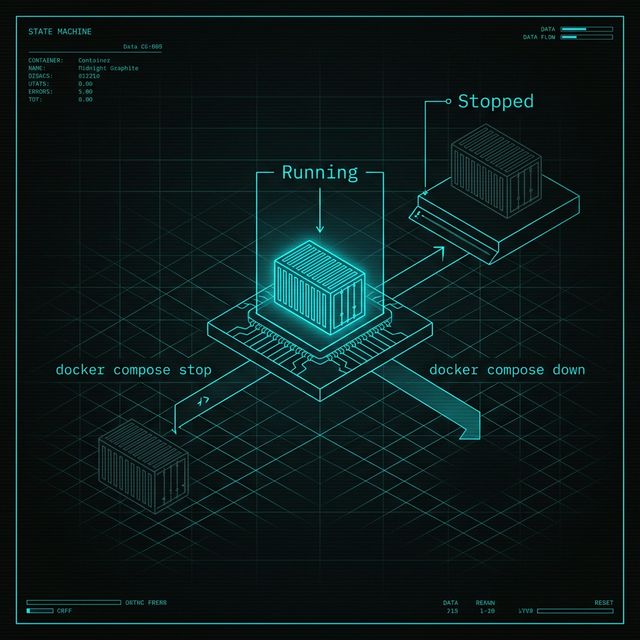
Figure 1: Choosing your reset level. ‘stop’ merely pauses the processes inside the containers, while ‘down’ completely deconstructs the environment, removing the containers and the project network entirely for a true clean slate.
Restarting and Rebuilding
Section titled “Restarting and Rebuilding”If we change our app code, remember that the image needs to be rebuilt. You can force this during the startup command:
docker compose up -d --buildThis command acts as the ultimate “make it happen” button—it rebuilds anything that’s changed and brings the stack back up in the background.
Extra Bits & Bytes
Section titled “Extra Bits & Bytes”CLI Reference: Compose Up
⏭ Internal Networking
Section titled “⏭ Internal Networking”Our services are up and we know how to control them, but we haven’t actually looked at the “magic” that allowed them to find each other in Lesson 13. Next, we’ll dive into the internal wires.