Building the API Image
We now have the ingredients for our API service:
- the application files
- the Dockerfile
- a folder that acts as the build context
Now it is time to turn that into an image.
The Build Command
Section titled “The Build Command”From inside our API project folder, run:
docker build -t portfolio-api .If all goes well, Docker will work through the Dockerfile step by step and build an image named portfolio-api.
Breaking Down the Command
Section titled “Breaking Down the Command”docker buildtells Docker to build an image-t portfolio-apitags the image with a human-friendly name.sets the build context to the current folder
That last bit matters more than it looks.
The Build Context
Section titled “The Build Context”The final . means:
“Use the current directory as the build context.”
That tells Docker which files it is allowed to see during the build.
So if our Dockerfile says:
COPY . .Docker is copying from the build context, not from your entire computer.
Docker does not magically have access to all your files.
It only sees the files inside the build context that we pass to
docker build.
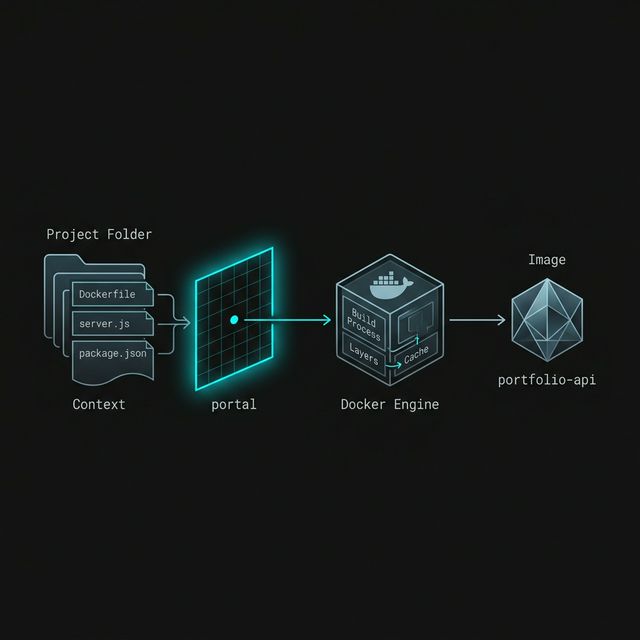
Figure 1: The Docker build flow. The ’.’ in our command is a critical portal that tells Docker exactly which local files are included in the ‘Context’ to be used during the image creation process.
What Happens During the Build
Section titled “What Happens During the Build”When Docker builds the image, it processes the Dockerfile instructions in order:
- start from the Node base image
- set the working directory
- copy the package files
- install dependencies
- copy the rest of the app
- record the exposed port
- set the startup command
The result is a reusable image that contains everything needed to run the API.
Checking That the Image Exists
Section titled “Checking That the Image Exists”Once the build completes, we can list our local images:
docker imagesWe should see an image named portfolio-api.
Depending on our machine, we may also see:
- the image tag
- the image ID
- when it was created
- its size
That confirms the build worked.
If We Change the App Later
Section titled “If We Change the App Later”If we update our app files, Docker does not magically update the image.
We need to build again.
That is an important distinction:
- the source files live in our project folder
- the image is a built snapshot based on those files at build time
If we edit server.js after building the image, the existing image does not
update itself.
We need to run docker build again to create a new image with those changes.
Why This Step Matters
Section titled “Why This Step Matters”Building is the moment where our app stops being “just some files in a folder” and becomes something Docker can run consistently.
That is the whole point of the image:
- portable
- repeatable
- runnable
Very neat. Very shipshape.
Extra Bits & Bytes
Section titled “Extra Bits & Bytes”Docker Build Reference
⏭ Running the API Container
Section titled “⏭ Running the API Container”Now that we have an image, let’s launch it as a container and see what happens when our API tries to come to life beside the database.