Manual Orchestration
We’ve now hit the localhost trap.
Our API container is trying to find MongoDB at localhost, but inside a container, localhost means “me, myself, and I.” Meanwhile, the real database is running in a completely separate container.
So now we do things the hard way.
Before Docker Compose swoops in and saves the day, we are going to manually wire these two containers together.
Creating a Shared Network
Section titled “Creating a Shared Network”By default, containers do not automatically communicate using friendly names.
To give our services a shared private space, we will create a custom bridge network:
docker network create shipshape-networkThat gives us a dedicated Docker network where containers can talk to each other by name.
Re-Launching the Containers on the New Network
Section titled “Re-Launching the Containers on the New Network”Our current containers were started without that network, so for this lesson we will remove them and re-launch them with the proper networking setup.
docker rm -f db_service api_serviceNow start the database container on the shared network:
docker run -d --name db_service --network shipshape-network mongo:8.0And now start the API container on that same network:
docker run -d -p 3000:3000 --name api_service --network shipshape-network portfolio-apiAt this point, both containers are running on the same Docker network.
That is progress.
But we are not done yet.
Updating the Connection String
Section titled “Updating the Connection String”Even though the containers now share a network, our API code is still trying to connect to MongoDB at localhost.
That will never work in this setup.
Inside a shared Docker network, a container can usually reach another container by using its container name as the hostname.
So in server.js, change this:
const MONGO_URI = "mongodb://localhost:27017/portfolio";to this:
const MONGO_URI = "mongodb://db_service:27017/portfolio";That tells the API container to look for MongoDB at the db_service container on the shared network.
On a custom Docker bridge network, container names can act like hostnames.
That means db_service is not just a label for humans — it also becomes the
address the API can use to reach the MongoDB container.
Rebuilding the API Image
Section titled “Rebuilding the API Image”Because we changed server.js, we need to rebuild the image so the updated application code gets baked in.
docker build -t portfolio-api .Then remove and re-run the API container:
docker rm -f api_servicedocker run -d -p 3000:3000 --name api_service --network shipshape-network portfolio-apiNow the API container is running with the updated connection string and should be able to find the database container.
Checking the Result
Section titled “Checking the Result”To see whether the connection worked, inspect the logs:
docker logs api_serviceIf everything is lined up properly, we should see the API connect successfully to MongoDB.
We can also test the route in our browser:
http://localhost:3000/api/projectsIf all is well, we should get back project data from the portfolio database.
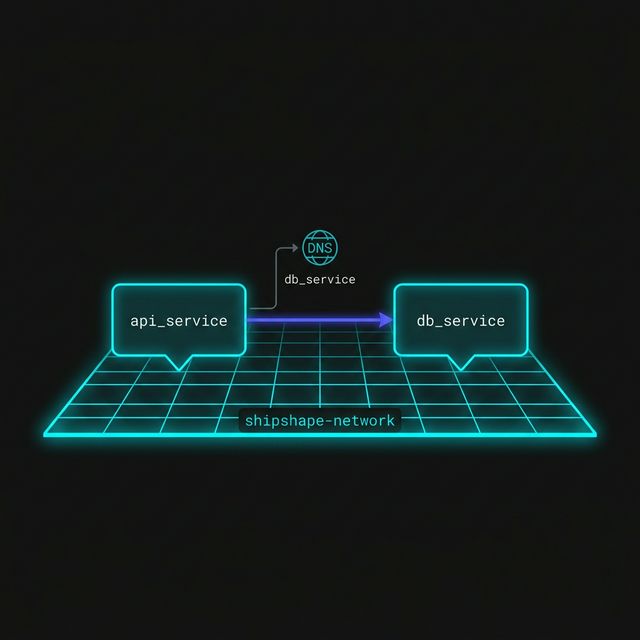
Figure 1: Success. By placing both containers on a shared bridge network, we enable Docker’s internal DNS, allowing the API to find the database by its service name instead of an IP address.
Why This Feels So Clunky
Section titled “Why This Feels So Clunky”To get two simple services talking, we had to do a surprising amount of manual work:
- create a network ourselves
- remember the network name
- remove and restart containers
- update application code
- rebuild the API image
- remember the correct
docker runflags for names, ports, and networking
That is a lot of ceremony for a tiny two-service setup.
Manual orchestration works, but it gets brittle fast.
The more services we add, the more commands, names, ports, and flags we have to keep straight. One missed detail can leave the whole stack half-working and deeply annoying to debug.
The Real Lesson Here
Section titled “The Real Lesson Here”Manual orchestration is useful because it helps us understand what Docker Compose is really doing for us later.
Compose is not magic.
It just takes all of this setup:
- networks
- service names
- builds
- ports
- startup commands
and lets us describe it in one place instead of typing it all by hand.
Cleanup, Again
Section titled “Cleanup, Again”Let’s clean up the containers and network we created before moving on.
docker rm -f db_service api_servicedocker network rm shipshape-networkExtra Bits & Bytes
Section titled “Extra Bits & Bytes”Docker Bridge Networking
⏭ Enter Docker Compose
Section titled “⏭ Enter Docker Compose”We’ve now done the wiring by hand. Next, we’ll replace this pile of manual commands with a single Compose file that describes the whole stack in one place.